Devlog #7 - VR sickness and some other stuff
18/05/2025
Test in VR for the whole team
Since the beginning of the project, I was the only one who tried the game on an actual VR headset. I personally didn't find any sickness or discomfort while playing, but as I'm not everybody and that a lot of people are more sensitive to motion sickness, we wanted everyone in the team could try the game in VR.
So on Tuesday, (almost) everyone in the team tried the game in VR. The result was way better than what I expected. The thing that I was more worried about was the jumping and movement. I was thinking that we would need to lower the speed of the player and the jump height, as well as minimize the number of jumps. But in the end, no one had any sickness from those two things. The only thing that was a bit annoying was the snap turning.
Snap turning vs smooth turning
By default, the unity XR Origin uses snap turning, which allows the player to turn in 45° increments. For some reason this was causing some discomfort. So we decided to change it to smooth turning with a speed of 60°/s. We also added a vignette effect to reduce the field of view when turning (in the same ways as the movment). This wasn't tried by the rest of the team yet, but in my opinion, it should be good (at least it is not worse than the snap turning for me).
Is that all?
Not really. I've also worked on a few other things but it was mostly bug fixes and polishing. First the most important bug fix: The tool tips when looking at the controllers are now correctly labeled!
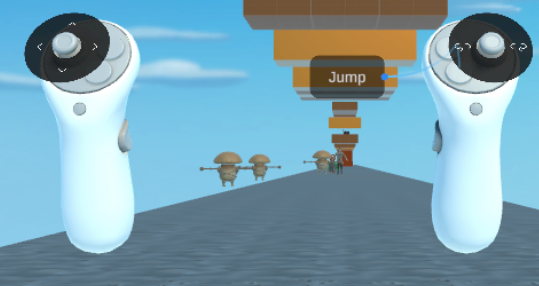
Controller tooltips with the correct labels
Another thing that I fixed was the fact that the camera height was not consistent with the player height, whether you are sitting or standing when you start the game, ... So I fixed that (it was juste changing a dropdown value in the XR Origin and setting the height to 1.7m). So now we don't have to worry about the position of the headset when we start the game.
The last thing that I worked on for this week is 2 bug fixes that are linked together. At first Germaine asked for some help with the sound, she has been working on adding footsteps sounds for the chaser enemy. But no sound was playing. When looking at the code, everything was fine, the issue came from the fact that the sound was triggered with animation events. But the animation was not playing. So I had to fix the bug with the Animator, the issue was that the Animator was too good, it was playing the idle animation if the enemy was not moving, and then had 4 possible animations to play (the 4 directions) but we only have 1 animation for the chaser walking. In order to control that, the animator was using a 2D Blend Tree with 2 inputs: speedv and speedh but those two values were not set in the code. So I replaced the blend tree with a simple 1D blend tree with only the speed as input (as we only have 1 animation for the chaser walking) and set the speed in the code. The blend tree goes form -1 to 1, where -1 is the chaser walking backward (just in case we need that later) and 1 is the chaser walking forward, and 0 is the idle animation. Now the issue is that we don't want the chaser to walk at a speed of 1 (or -1) all the time, so we need to remap the speed to a value between -1 and 1. Unity doesn't have a built-in function for that, so I had to write this little piece of code:
float t = Mathf.InverseLerp(-maxSpeed, maxSpeed, currentSpeed);
float mappedSpeed = Mathf.Lerp(-1, 1, t);
This code remaps the speed from a range of [-maxSpeed, maxSpeed] to a range of [-1, 1]. So now whatever the speed of the chaser, the animation will be played correctly, and the sound will be played at the right time.
As I was there, I also modified the sound script a bit. The version made by Germaine was using a single audio clip for the footsteps (which is not really pleasant to hear), so I added a list of audio clips that are played randomly at each step:
int randomIndex = Random.Range(0, footstepSounds.Length);
animationSoundPlayer.clip = footstepSounds[randomIndex];
animationSoundPlayer.Play();
This way, the sound is more realistic and less repetitive. The AudioSource (animationSoundPlayer) is attached to the Chaser so the sound is played at the right position, hence when the chaser is far away, the sound is less loud, and when the chaser is close, the sound is louder.
That basically it for this week, focused on some small incremental improvement for the game. I obviously also worked on the GDD, which is not finished yet.